Map Elements
When the screen is first displayed, the entire site is displayed with the venue names and total number of assets (grey circle) and/or people (blue circle) in each of the venues. The navigation bar collapses to allow the map the largest possible screen area.
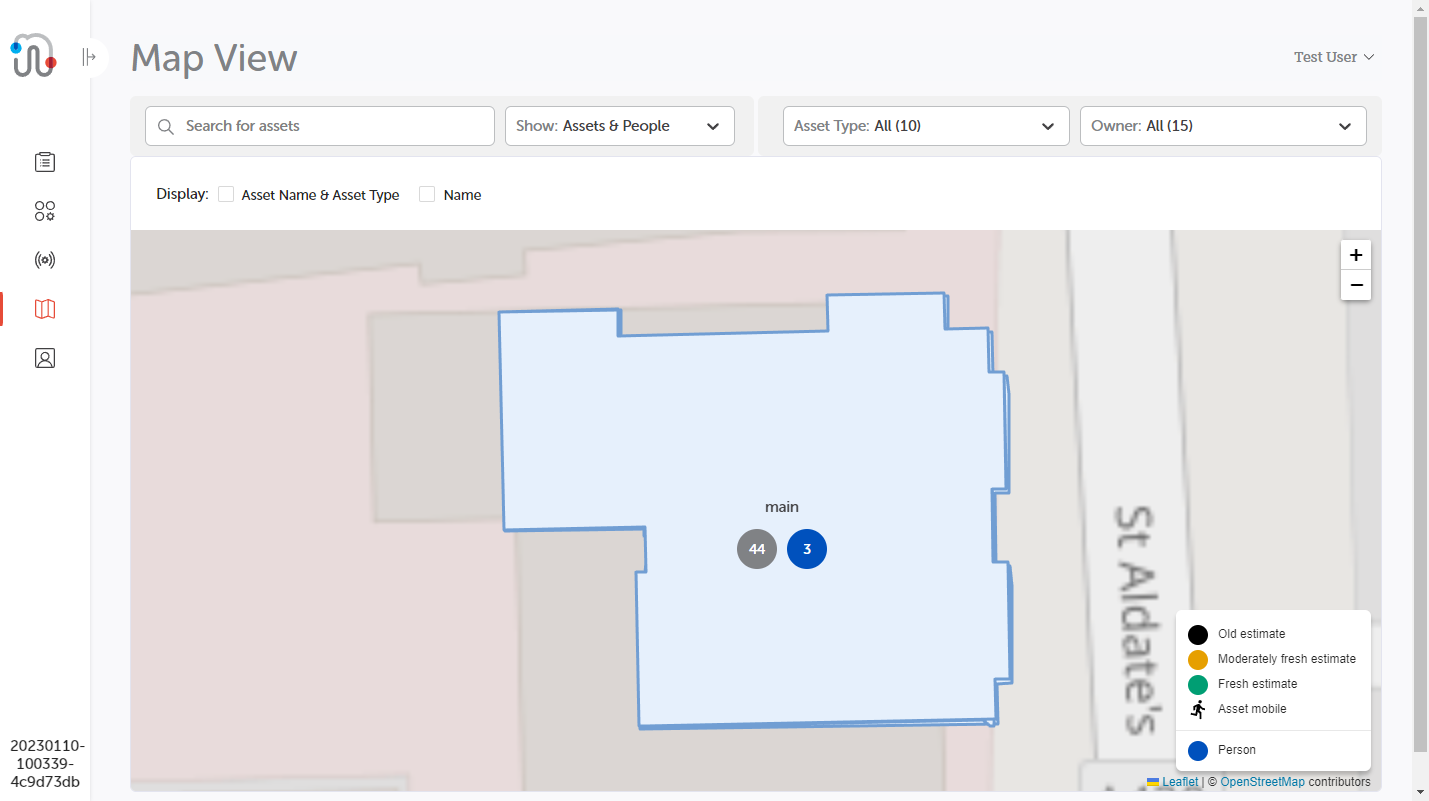
Important: When the Map View screen is displayed, or the search or filter options are applied or removed, the results will display up to the first 100 results found only.
Note: It is recommended that you use a laptop or desktop to view the Map View screen. It is not suitable for use with a mobile phone.
Some of the screen elements are used for both assets and people and will always be displayed but where an element relates to one or the other, which of them you see will depend on the system configuration.
Other elements will be displayed on the Map View screen only when they are required. E.g., the Venue drop-down will not display for sites that only have one venue.
Search and Filters
When a floor is selected, all assets on the selected floor are displayed. To assist in locating the required asset, there is a search option and a filter option.
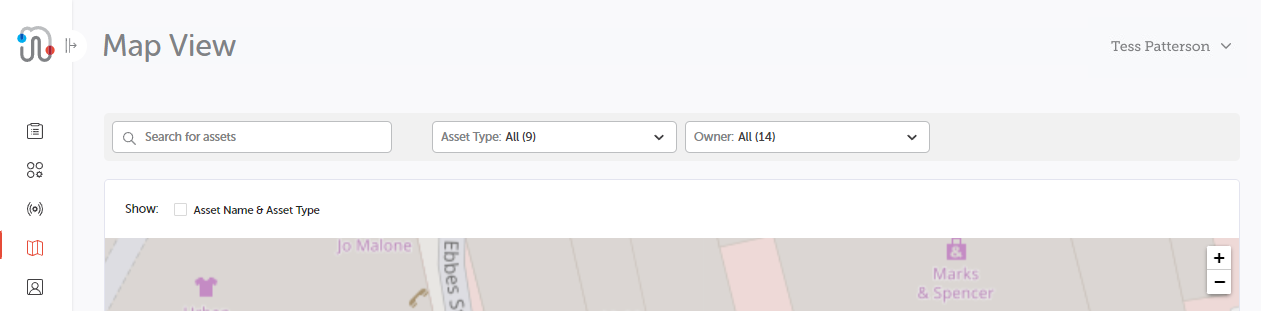
Note: The Search and Filters bar may have an additional option, Show Assets and /or People, if your system is configured for mobile app users to be viewed. For more information, please see the Map View - People topic and the Show element below.
These Asset Type and Owner fields will wrap around and display on a second row if viewed on a narrow screen or window.
Search
The search feature searches the list using the asset name field only.
In the Search for assets field, enter all or part of the name of the asset and press Enter.
If there is a single match, the map will move, if necessary, to display the matching asset, whether that asset is on another floor or another building.
If there are multiple matching assets but they are on other floors, the lowest floor with a matching asset will be displayed.
If there are multiple matches, the building or buildings where they are located will display a dot with the number of matching assets.
If there are no matching assets, a message displays in red under the search field and the display will remain in its current location.
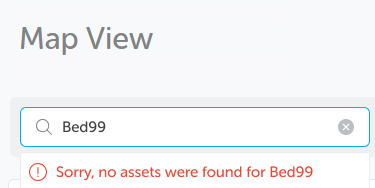
To clear the search field, click the cross on the right-hand of the field.
Show
The Show field enables you to display both assets and people, or assets or people only.
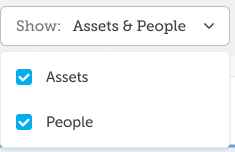
When the Assets option is deselected, the Asset Type and Owner filter drop-downs are no longer displayed.
When only one of the Show options has been selected, the Display options in the bar below are affected and will display only the appropriate check box options.
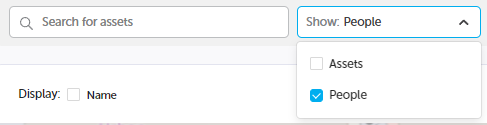
Note: One option always must be selected, so if People only is selected and this is deselected, the Assets option will automatically be selected.
When the required selection has been made, click the arrowhead to collapse the drop-down.
Filters
You can filter the number of assets displayed using the drop-down filters for:
- Asset Type
- Owner
The filters are set to All by default and the number of items in each filter is indicated by the number in brackets.
Using the filter drop-downs, you can select one or more items from each list or return to the All option.
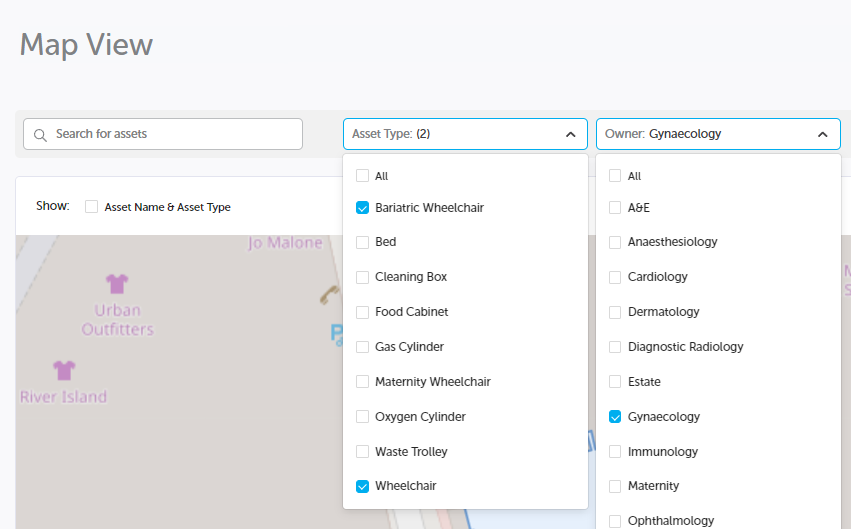
If multiple items have been selected, the drop-down displays the number of items selected. If one item has been selected, the drop-down displays the name of the selected item.
Combinations
If you select items from both filters, the results use an AND link, displaying those assets that match both filters. E.g., asset type is Bed and Owner is Maternity, you will only see beds that belong to the Maternity department.
If you have a previously run a search and select a filter, the search is cleared. The same occurs if you have filters applied and run a search, the filters automatically get set to All.
Display
The Display check boxes, Asset Name & Asset Type and Name, enable more details about the assets or people to be displayed by each dot. The Name check box displays the username.
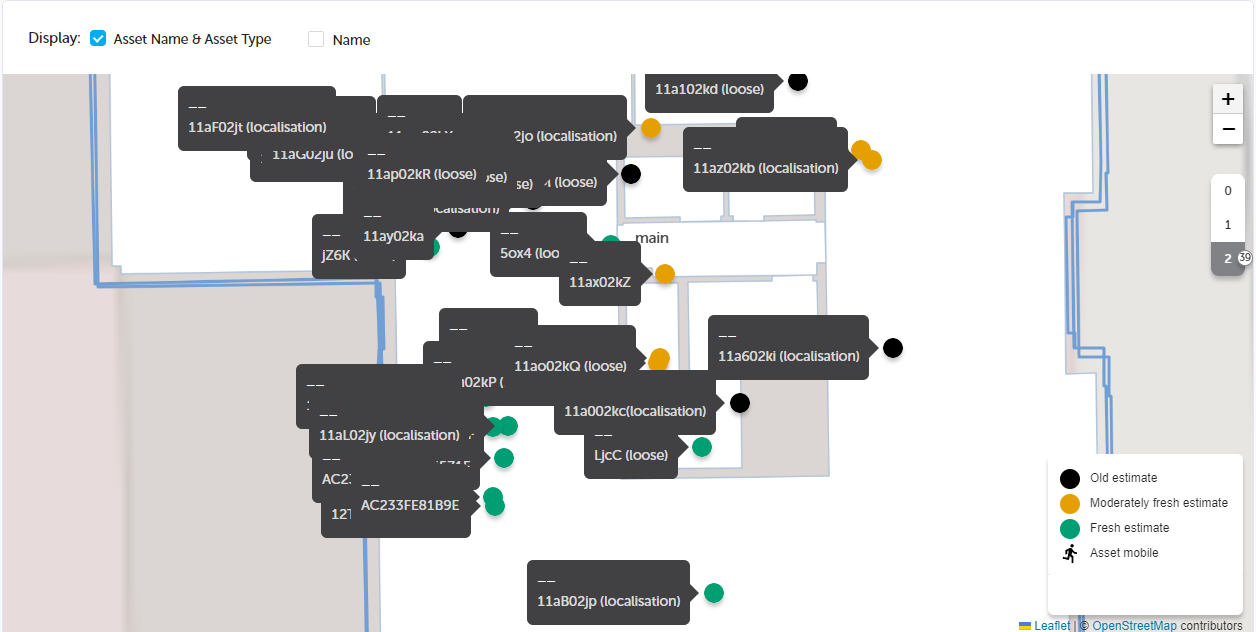
If the map view is too crowded, deselect the display Asset Name & Asset Type check box and click on the appropriate dot. The information panel is expanded to show the details below.
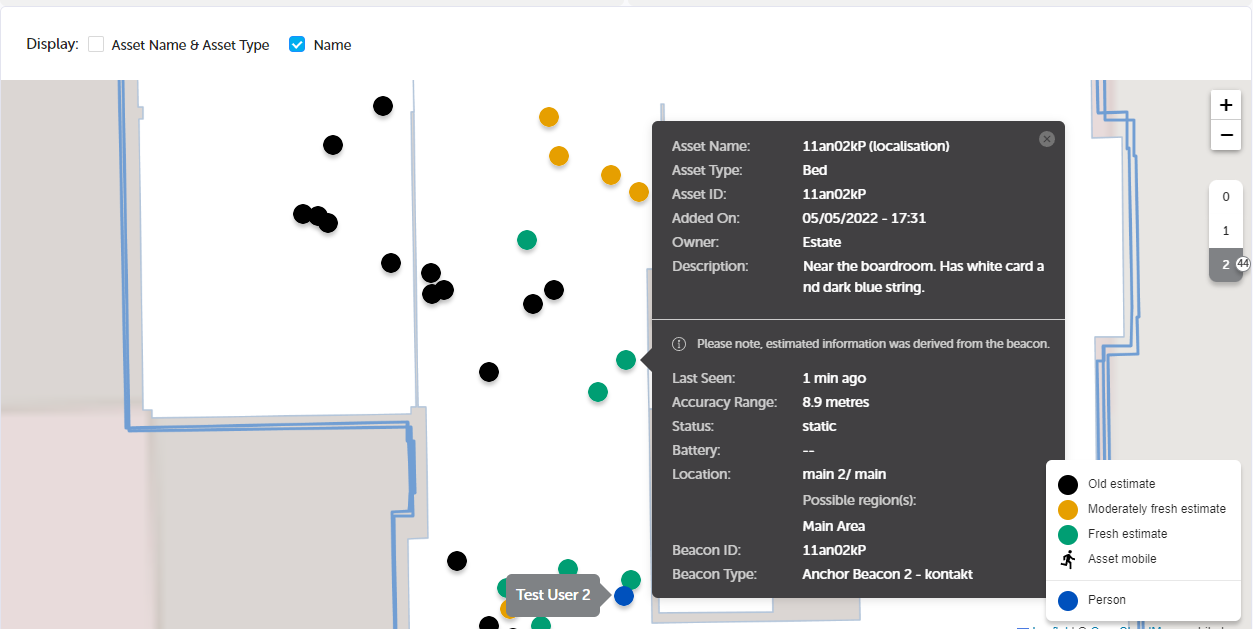
Click the cross in the top right-hand corner of the information panel to collapse the box.
The People dots display the username using the display Name check box only. Deselect the check box to hide the usernames when no longer required.
Venues
If your organisation has multiple venues and the user has permission for more than one of them, a Venue drop-down displays in the top left-hand corner of the map. From this, the user can select which site they wish to view.
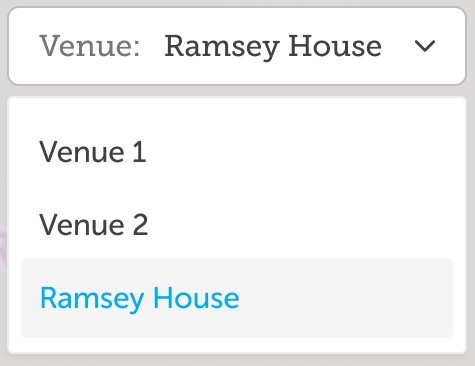
If you switch to another screen, when you return to the Map View, the last selected venue is displayed.
Magnification
The magnification of the map can be amended as required using the standard plus and minus icons in the top right-hand corner of the map.
Floors
When you click on a building, the default floor is displayed. The default is the lowest floor where assets and have been detected. If the system is set for people only, the default floor is the lowest floor where people have been detected. The colour of the asset dots indicates when their position was last confirmed, see the Legend.
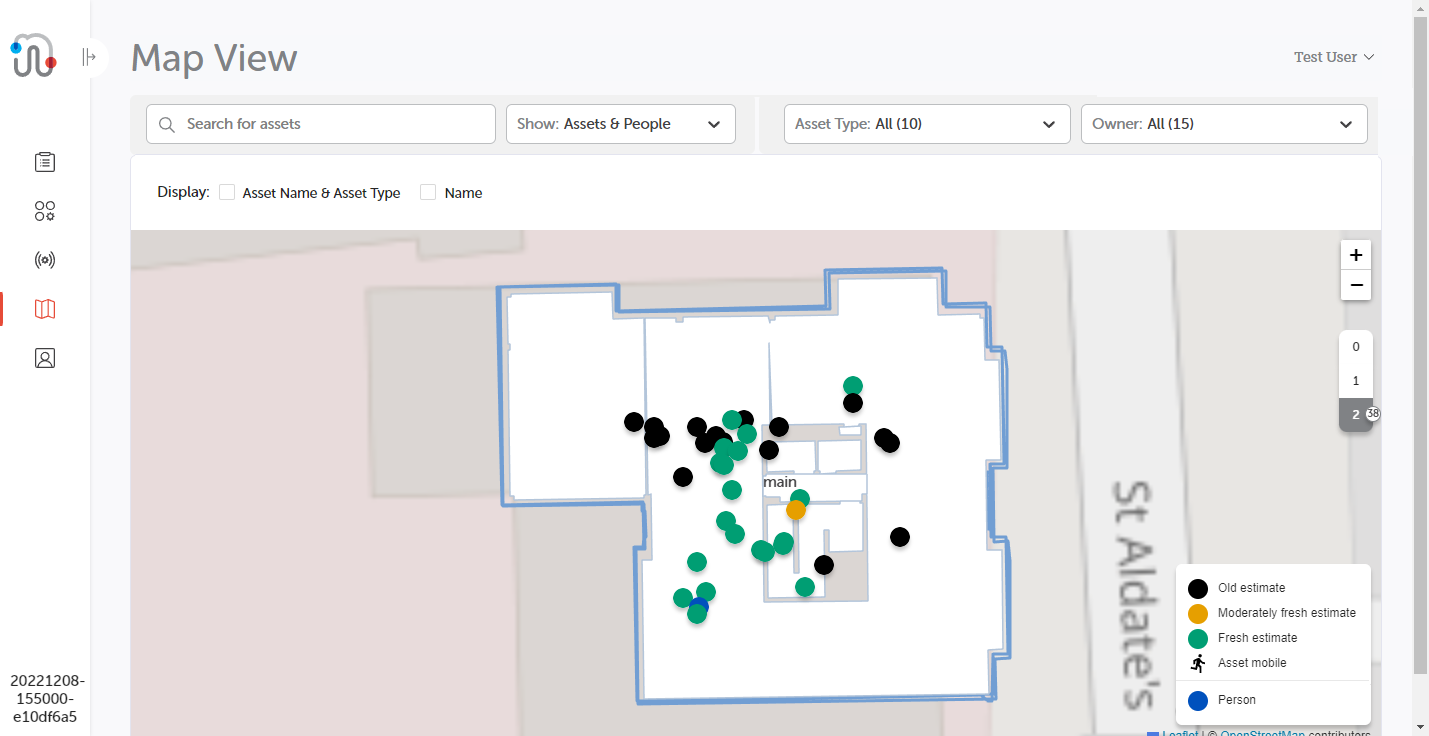
Floor Selector
When a building is first selected, the default floor will display with all assets located on it. Below the magnifying icons, available floors are displayed with the number of assets on each floor displayed in a small circle.

Click on the floor number to select that floor and display the assets thereon.
Legend
The legend indicates when an asset's location was last confirmed by the colour of the dot and includes an icon if it is moving.
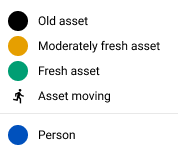
-
Green dot - Fresh asset, confirmed within the last 10 minutes.
-
Amber dot - Moderately fresh asset, confirmed within the last 10 to 60 minutes.
-
Black dot - Old asset, confirmed more than 1 hour ago.
-
Blue dot - People, these do not change colour.