New and Registered Beacons Tabs
Displayed on the Beacon Management screen is the Registered Beacons tabs and New Beacons:
-
New beacons - A new beacon is one that has been listed on a third-party system (currently Kontakt) and is available for use. While they are in this state, ILS does not track them.
-
Registered beacons - A beacon that has been registered and may or may not have been assigned to an asset.
Note: The number in brackets indicates the number of beacons available under each tab, not the number currently displayed.
Note: The New Beacons tab will be greyed out and inactive for Read Only users.
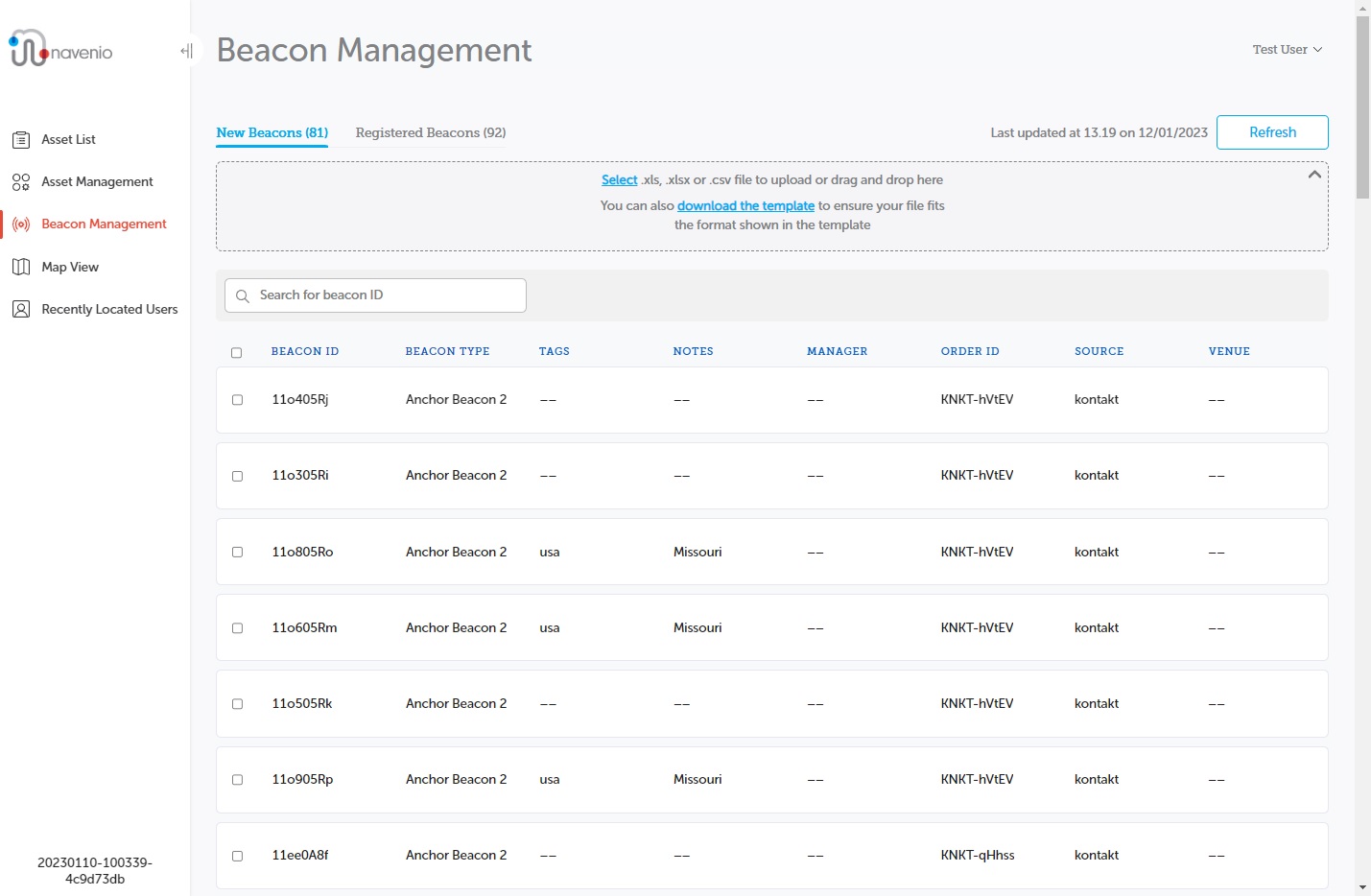
Under each tab, there is a search field which searches for beacons. See the Beacon Search topics for full details.
The Registered Beacons tab also has a filter drop-down which enables the list to be filtered by all beacons, beacons with an asset assigned or beacons that do not have assets assigned.
List of Beacons
The list of beacons includes relevant data to assist in locating the required beacon. The columns in the Beacon Management are relevant to whether it is a new or registered beacon:
| Column | New Beacons | Registered Beacons |
|---|---|---|
|
Beacon ID |
ü | ü |
|
Beacon Type |
ü | ü |
|
Tags |
ü | ü |
|
Notes |
ü | ü |
|
Manager |
ü | |
|
Order ID |
ü | |
|
Source |
ü | |
|
Venue* |
ü | |
|
Asset Name |
ü | |
|
Asset Type |
ü |
* The data for Venue is provided by the third-party beacon supplier. As such, Navenio Ltd cannot guarantee that it will match the Venue as specified in the ILS Tracker.
Refresh
Beacon Management data is not updated automatically. If information changes, e.g., a new beacon is added or one is registered, while the screen has been open, the updates will not show. Click Refresh to force an update to ensure the data on screen is up to date. Adjacent to the Refresh button is a timestamp which displays when the screen data was last updated.
Sorting Beacons
It is not possible to sort the beacons listed under the New Beacons tab. The order is the order they are sent through by the third-party who supplies your beacons.
The default sort order for the Registered Beacons tab is ascending by Beacon ID. You can change the sort order by clicking the appropriate column heading. See Column Sort Order for further details.